
Set Up Multifactor Authentication
Multi-factor authentication provides more sign-in security. Staff and students can set up the Microsoft Authenticator app to let you log into Office 365 securely with your mobile device.
What you need
- One internet connected device e.g. desktop computer, laptop and tablet. You will use a web browser to register MFA.
- One internet connected mobile device. Download and install the Microsoft Authenticator App from Android Play Store or iOS App Store to your mobile device.
How to Register
Microsoft Authenticator – Push Notification
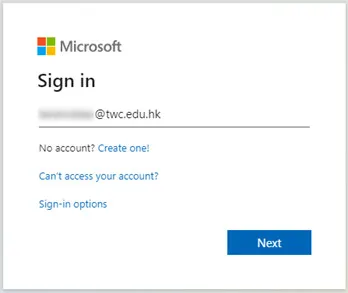
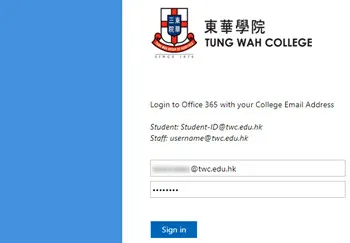
- Open a web browser on your computer and go to https://aka.ms/MFASetup. Sign in to TWC Office 365.
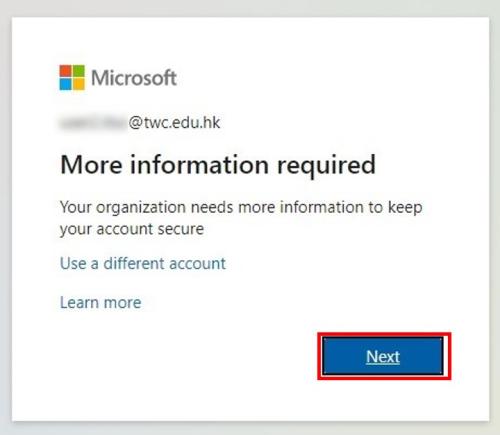
- You will see the More information required prompt. Choose Next.
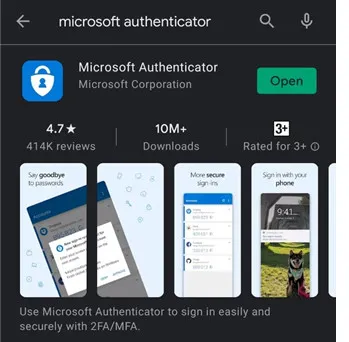
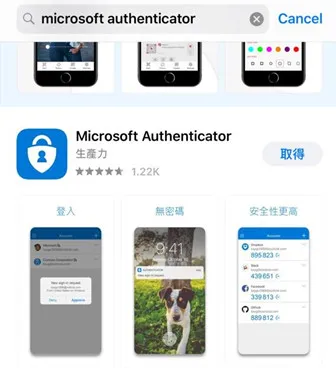
- On your phone, search and download the Microsoft Authenticator app from Android Play Store or iOS App Store.
(Android- Play Store) | (iPhone - App Store) |
|---|---|
| 
|
- After you install the Microsoft Authenticator app on phone, choose “Next”.
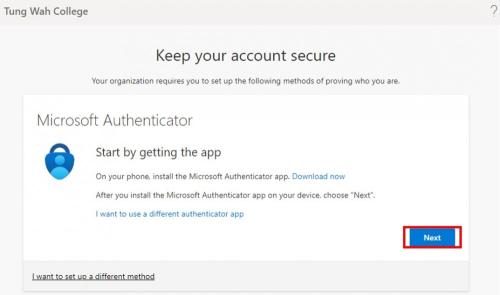
- Choose “Next”
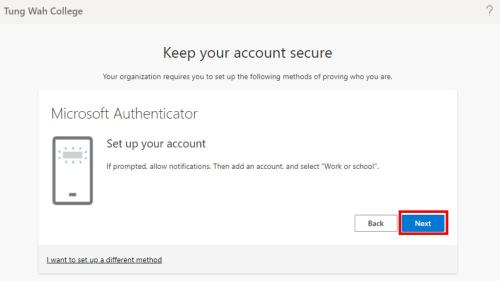
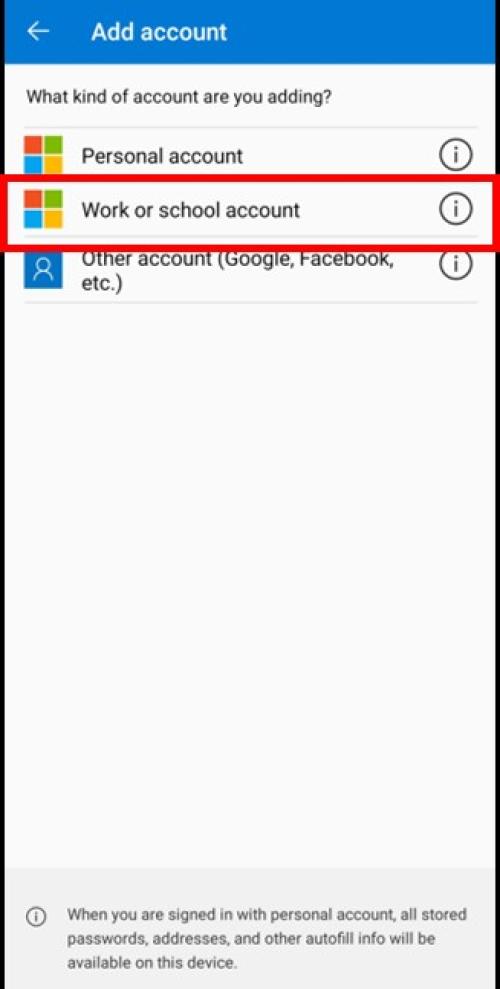
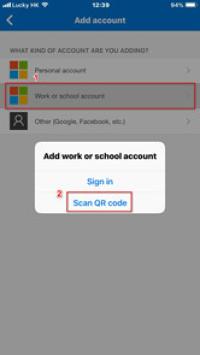
- On your phone, open the Microsoft Authenticator app. Choose “Add account”, and then choose “Work or school account”.
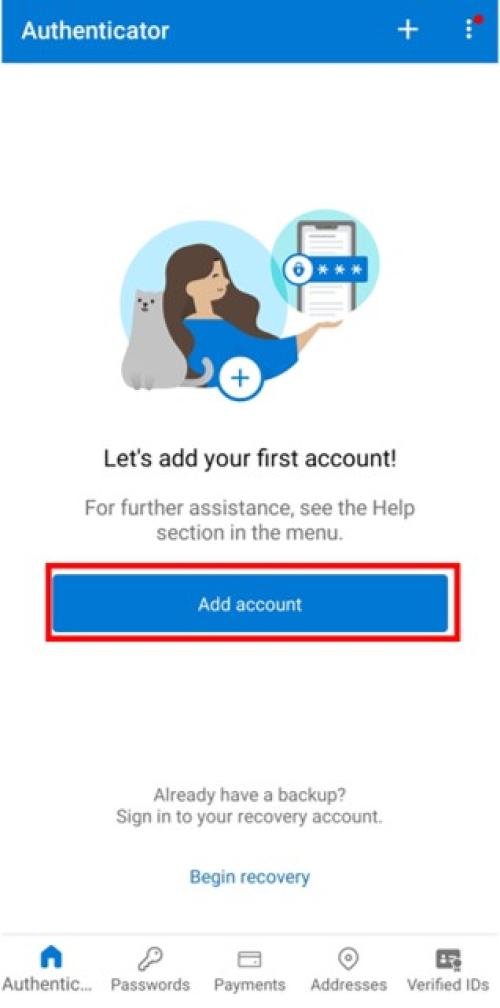
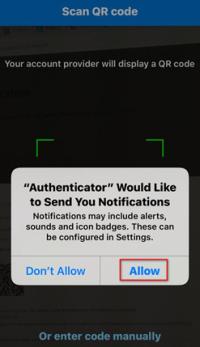
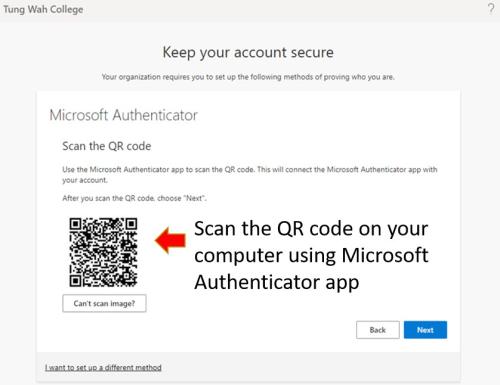
- Choose “Scan a QR code”. Choose “Allow” when prompted for permission to take pictures and record video and then scan the QR code in the open window on your computer.
- After the account has been added, choose “Next”.
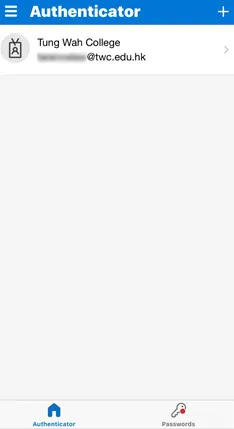
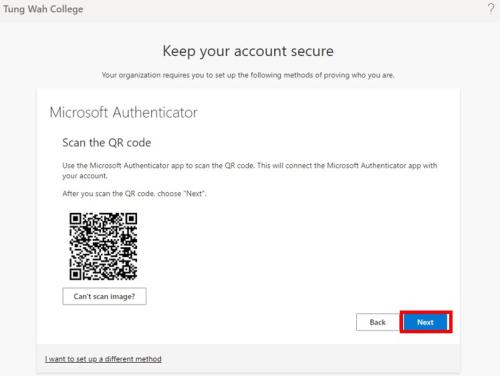
- On your computer, remember the number displayed on your screen.
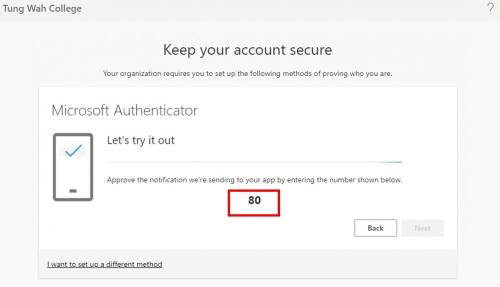
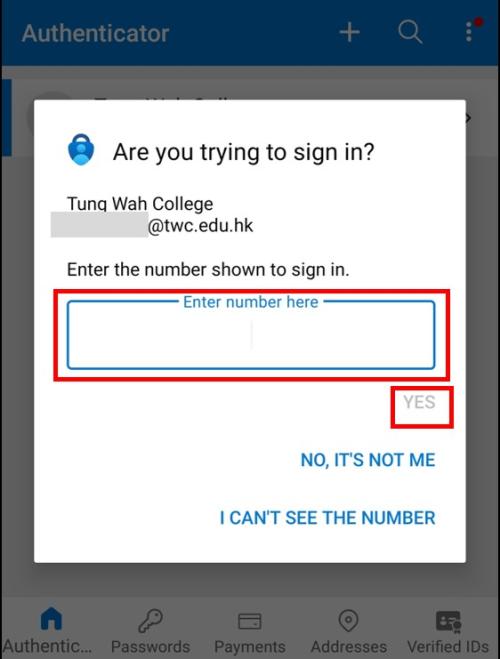
- On your Microsoft Authenticator app, enter the number into the box. Choose “Yes”.
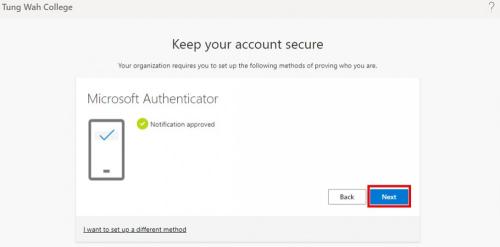
- Choose “Next”
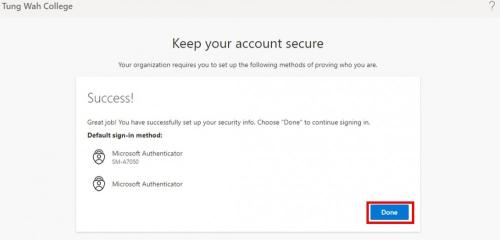
- Choose “Done”
Set up SMS Verification Code as an alternative authentication method
- After registering Microsoft Authenticator app, set up SMS Verification Code as an alternative authentication method so that you have others from which to choose when one method is unavailable.
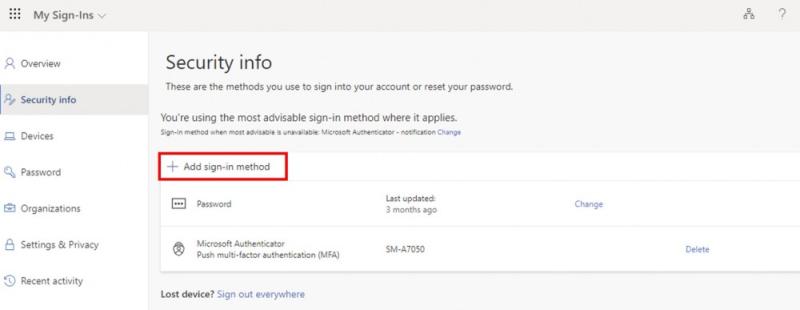
- In the Office 365 Security info page https://mysignins.microsoft.com/security-info, Choose “+ Add sign-in method”
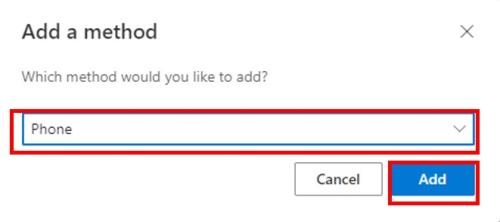
- Choose “Phone” in the drop-down list, and then choose “Add”.
- Enter your phone number. Choose “Text me a code”, and then choose “Next”.
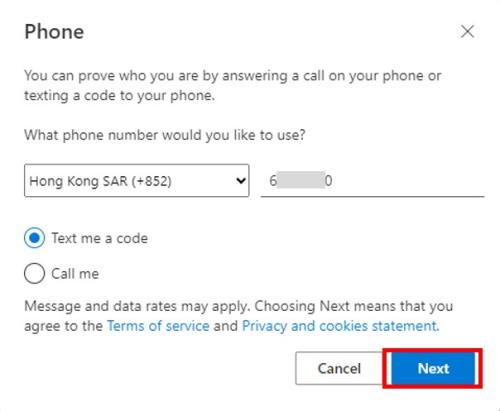
- On your phone, find the SMS verification code.
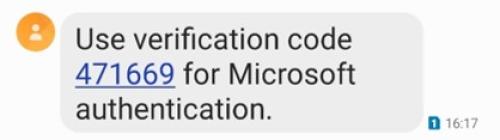
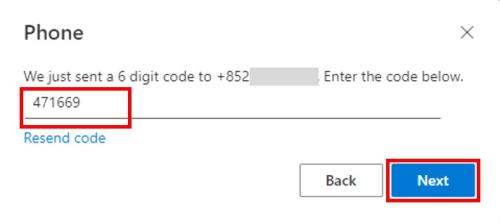
- Enter the SMS verification code, choose “Next”.
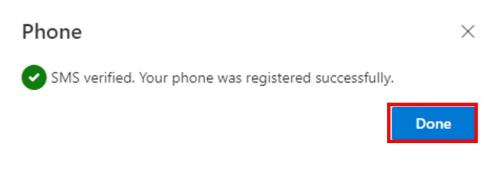
- Choose “Done”
Sign in another way if smartphone has been replaced/ Microsoft Authenticator app is not available
Please follow the steps below to add a new smartphone or device.
- Open a browser on your computer and sign in to TWC webmail.
- Sign in to Office 365 with your TWC email address as the username and your password.
- Choose "I can't use my Microsoft Authenticator app right now"
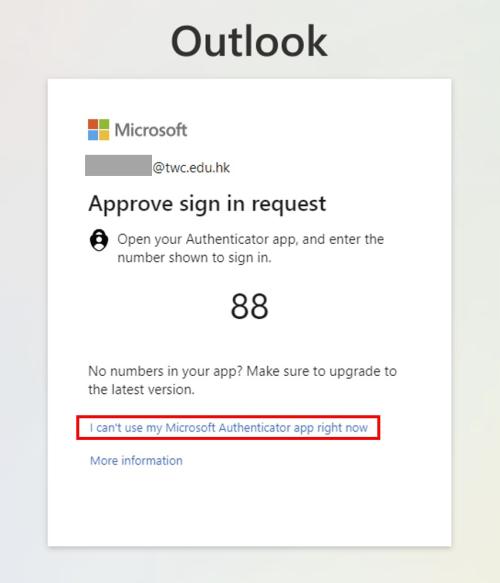
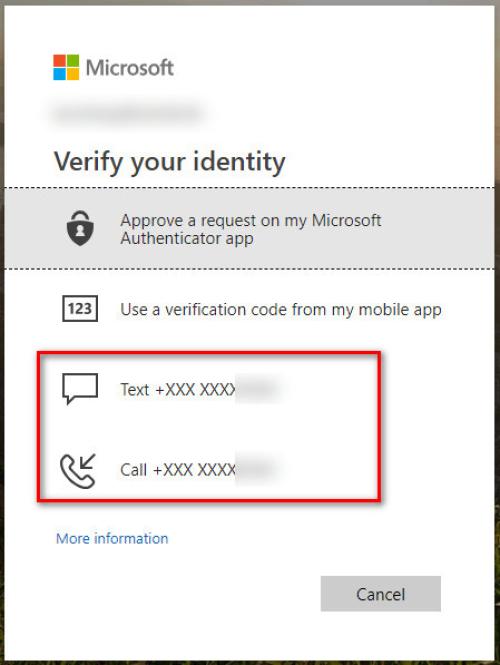
- Choose "Call XXX+XXXXXXXX" or "TEXT XXX-XXXXXXXX. Then the system will call or text your registered phone for verification.
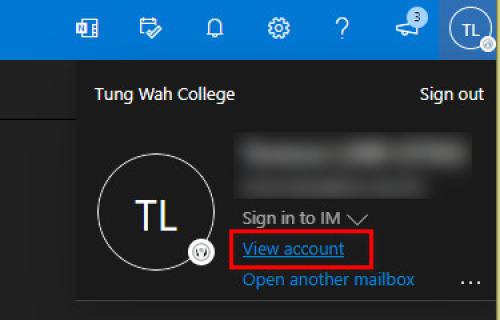
- After logged in, click your profile icon on the upper right, and then click "View account".
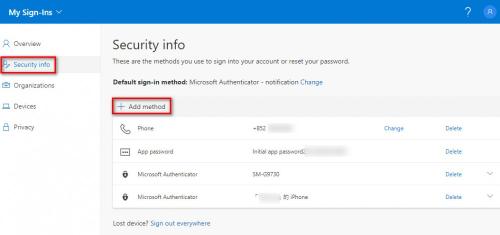
- My Sign-ins Page pops up and from the left panel, choose "Security info", and then click "+ Add method" on the right-hand side.
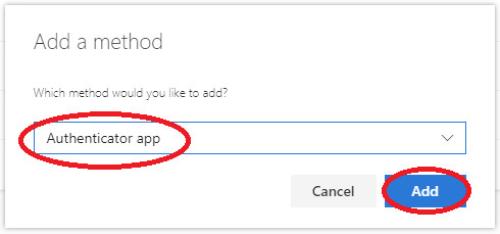
- In the "Which method would you like to add?" box, Choose "Authenticator app" and click "OK".
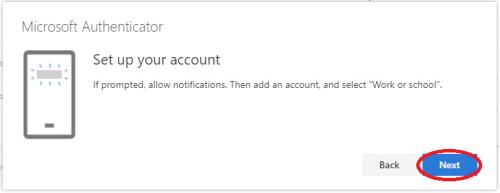
- "Microsoft Authenticator app" has to be installed on your new mobile device. If you have done so, click "Next" and click “Next” to continue to set up your account.
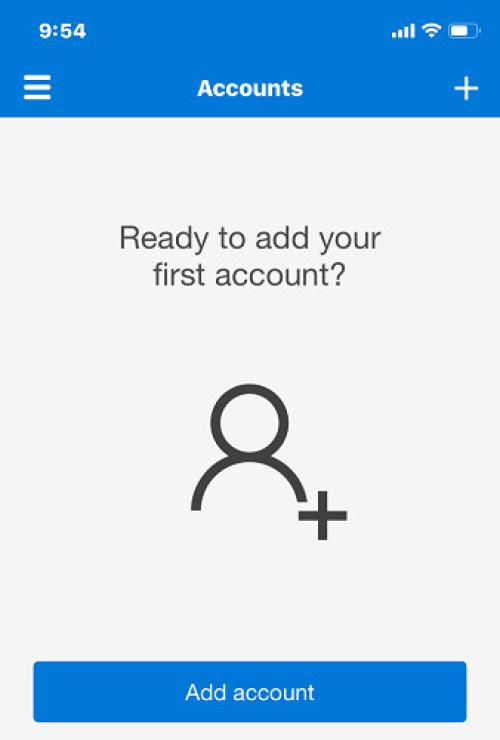
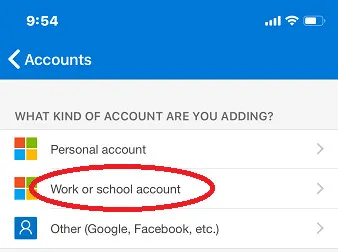
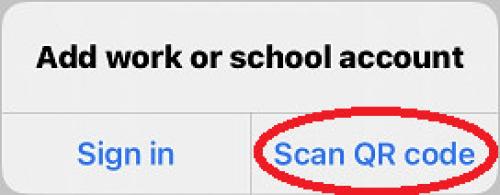
- Open the Microsoft Authenticator app on your new mobile device. Click “+” to add an account and choose “Work or school account”. When prompt, choose "Scan QR code".
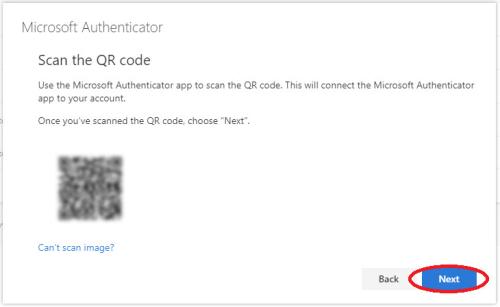
- Scan the QR Code on the Web Page.
- The MFA system will send a notification to your new mobile device to verify. Please enter the number displayed on your computer screen and click “Yes” to finish the process.
- Your new mobile device will be shown on the list of Security Info Page.
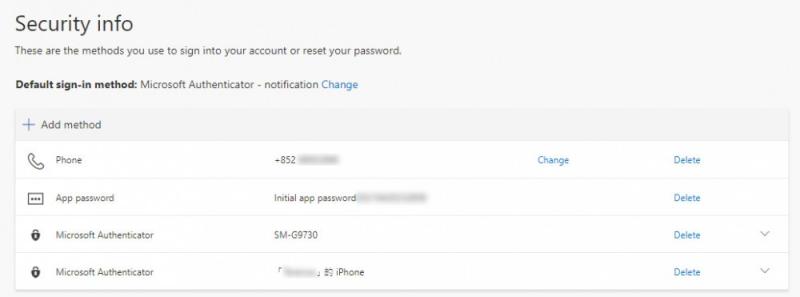
- Delete your old mobile device as shown on the list of Security Info Page.
Use the Outlook app in your devices
- After you have set up an authenticator app as a second form of authentication, we recommend that you install and only use the Outlook app to access your Microsoft 365 email.
- See Set up mobile devices below for how to install Microsoft Outlook on your mobile device.
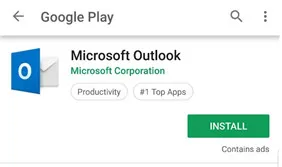
- Download & Install 'Microsoft Outlook' from the Google Play Store (Android) or App Store (iPhone)
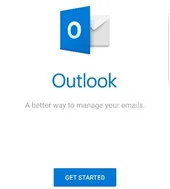
- Launch the Outlook application and select 'Get Started'
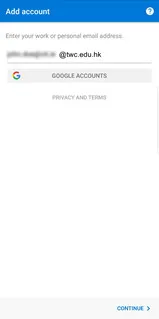
- Enter your TWC email address in the text field. *If you have other accounts signed into already, a separate page will appear asking if you want to add these as well*.
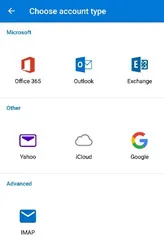
- Select 'Office 365' from the list
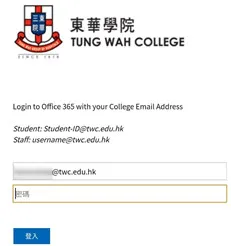
- You will be re-directed to the TWC sign-in page. Enter your credentials here.
8. With MFA enabled on your account and with 'Authenticator' installed on your mobile, you will be prompted with the below message to allow the sign in to proceed.
- If you opted to use the verification code, you will need to open the app and enter the 6-digit code under your account. This refreshes in the app every 30 seconds
- If you configured MFA to receive texts instead, you will receive a text message with a 6-digit code. Enter this code to proceed.
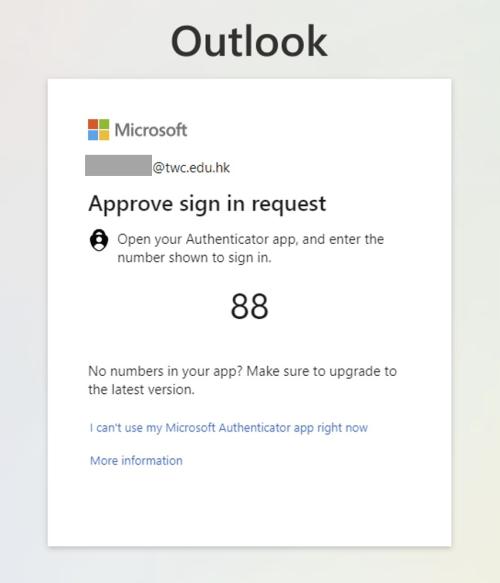
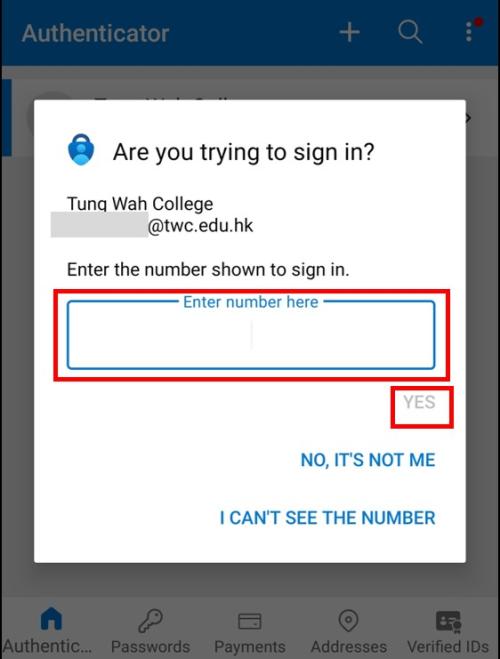
- Approve the sign-in request and you should now be able to access your TWC emails on the mobile.
- Click on Settings (gear icon) and click on Signature. Remove the “Get Outlook for iOS / Android” signature. You may add your own signature.